
For studios · Schedule & Bookings
Your schedule
The calendar where your week comes together: how to read it and move around it on a computer or a phone.
Schedule is your calendar: every class on a given day, who’s teaching it, and how full it is. Open it from Schedule in the menu.
Reading the week
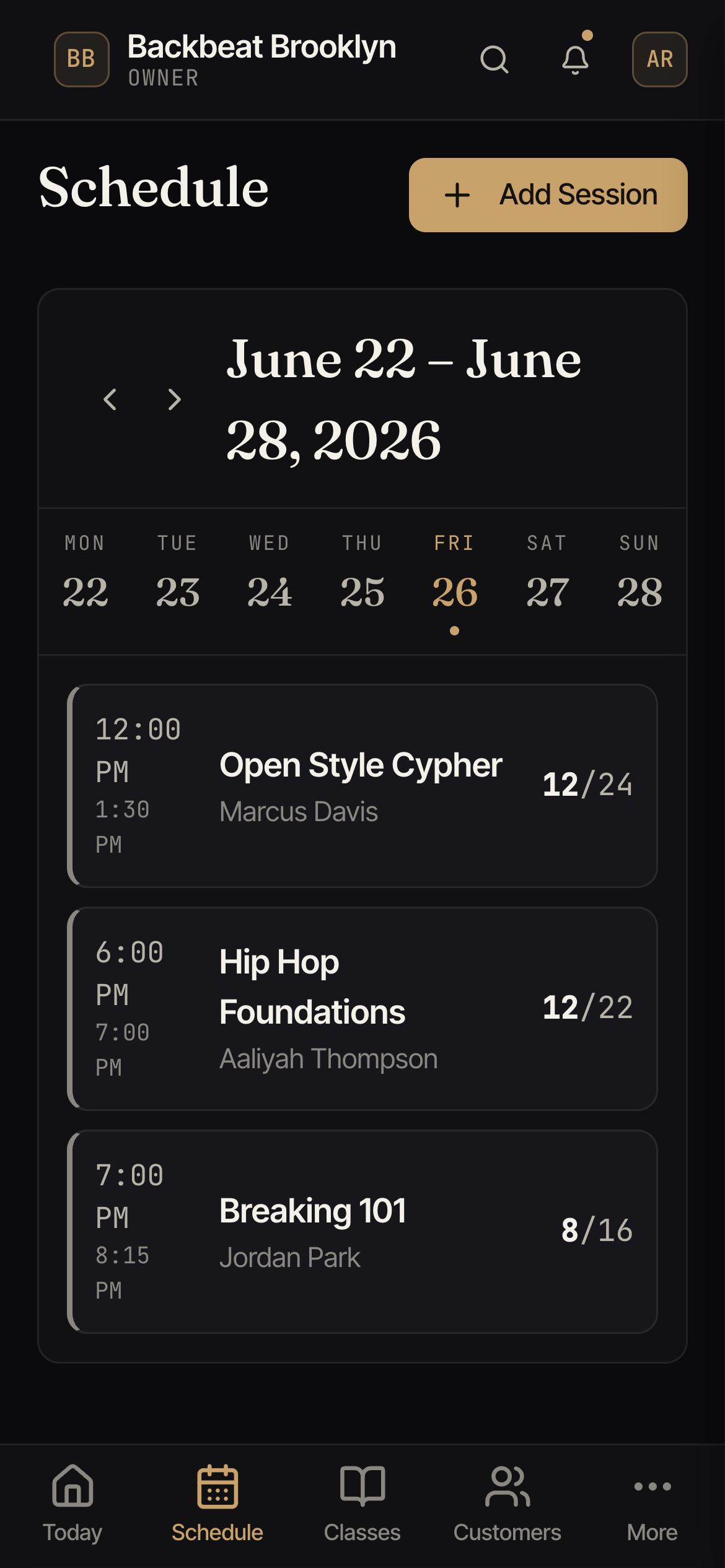
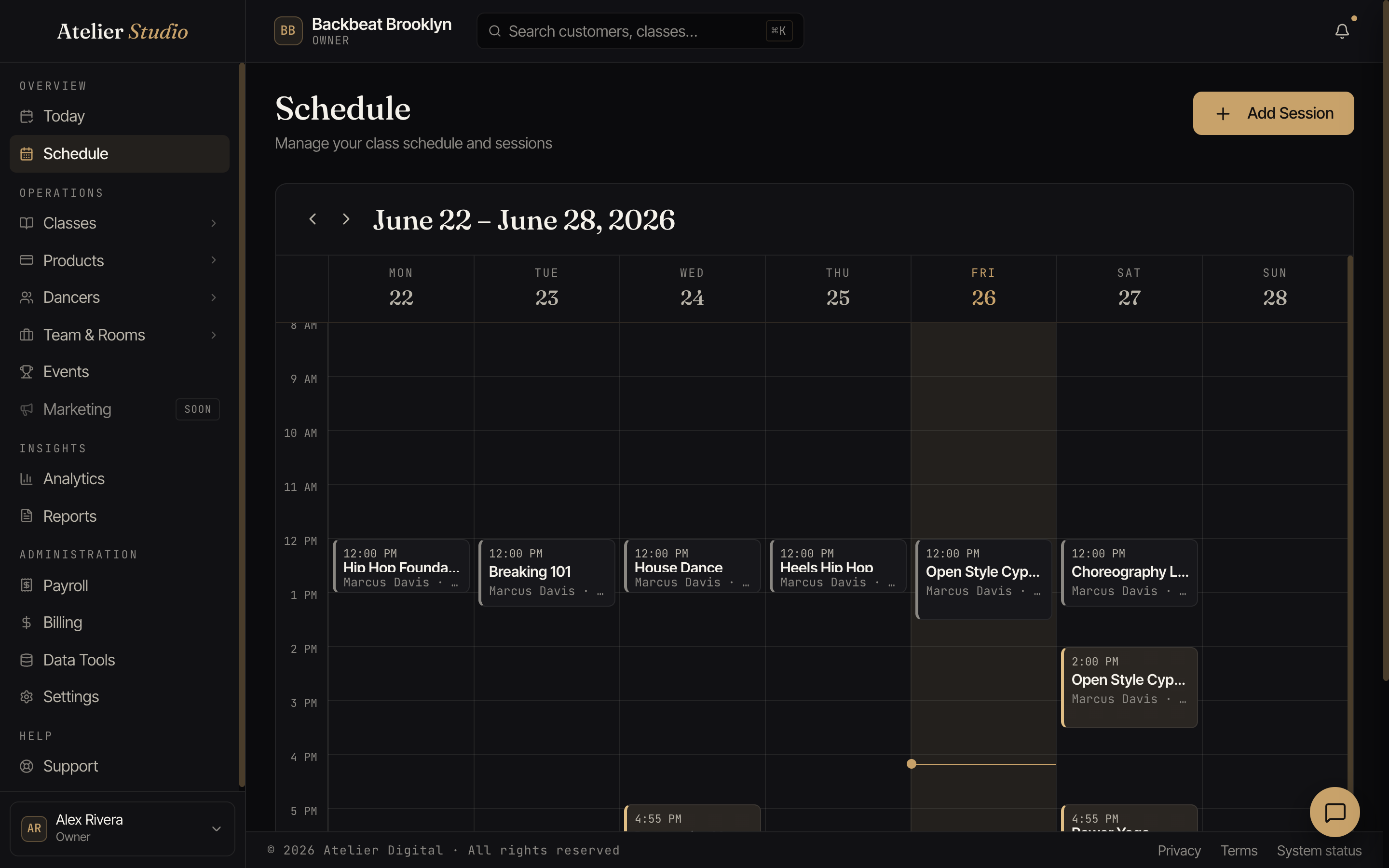
On a computer you see the whole week at a glance: time runs down the side, days run across the top, and each colored block is a class on the calendar. A block shows the time, the instructor, and how many spots are booked.
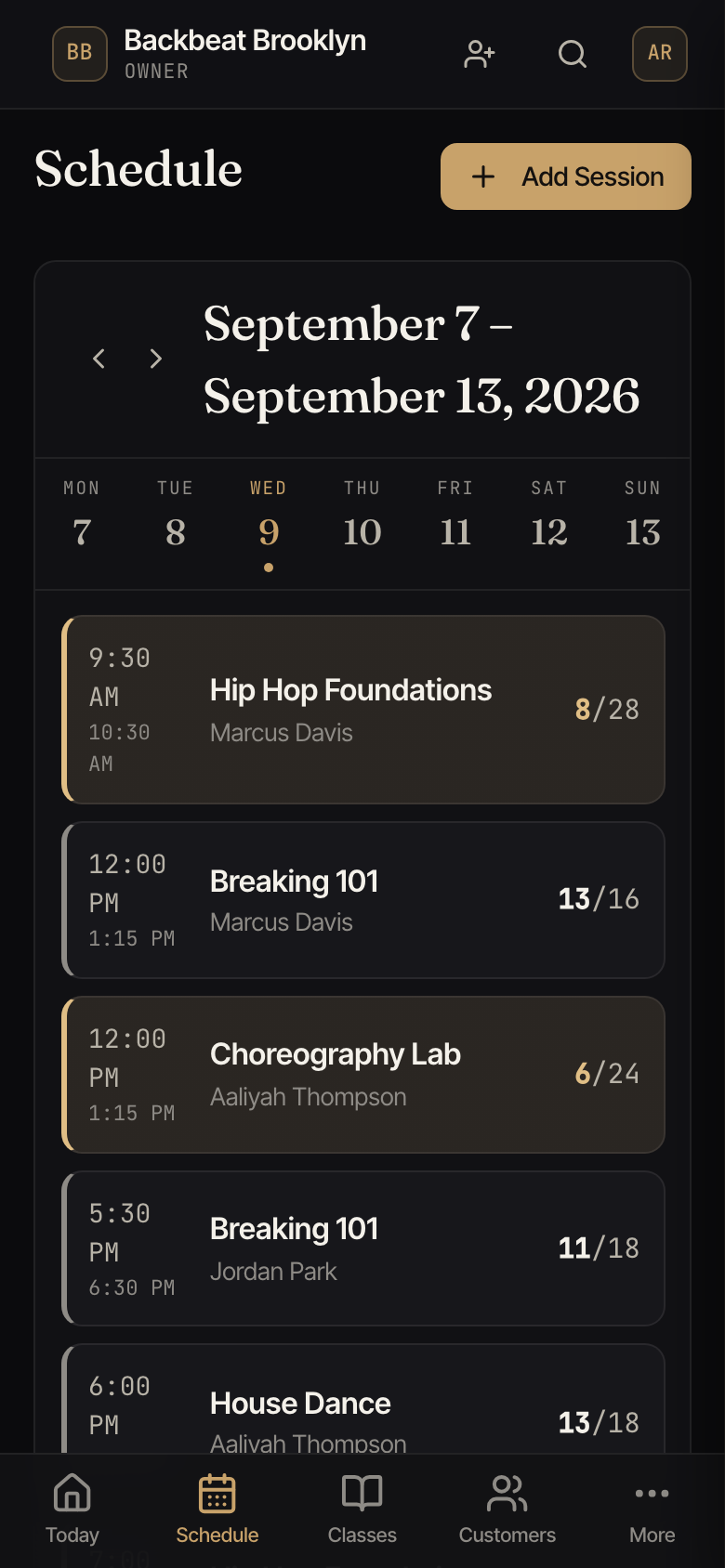
On a phone you see one day at a time. Tap a day along the top to switch, and that day’s classes appear as a tidy list.
Focus on a single day
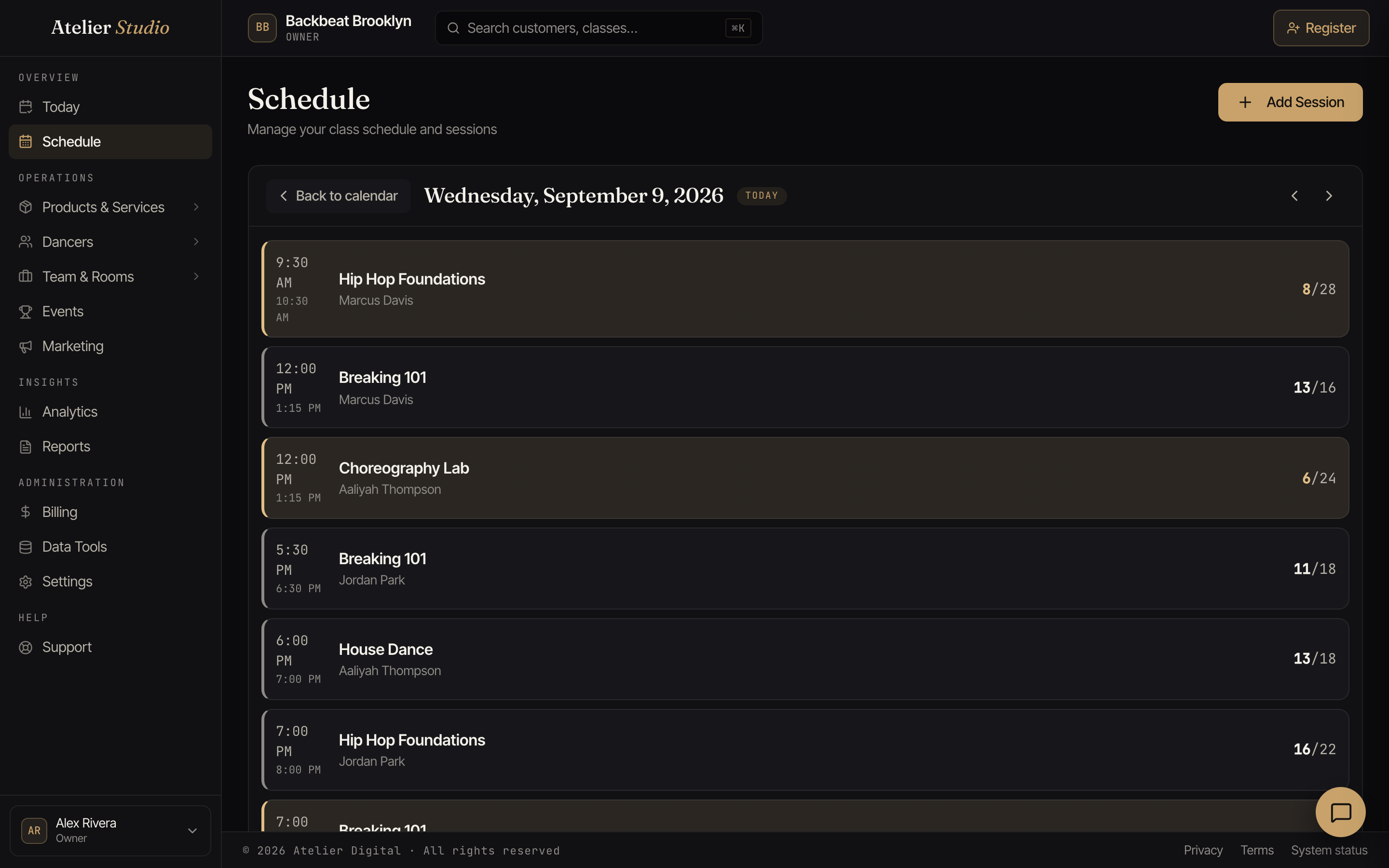
On a computer, click a day’s heading (the weekday and date across the top of the calendar) to open just that day as a simple list of its classes, first to last. It’s the same one-day view your phone shows, now a click away on the big screen.
- Back to calendar takes you back to the week you were looking at, the same week, not today’s, so you never lose your place.
- Use the day arrows (‹ ›) to step to the day before or after, and Today to jump straight back to today.
Filtering the schedule
Use the filters above the calendar to show fewer classes:
- My classes / Everyone: show only the classes you teach, or all classes. You see this only if you are on staff and also an instructor.
- Instructor: show the classes of one instructor.
- Location: show the classes at one location. You see this only if your studio has more than one location.
Your choice is remembered in that browser, so the schedule looks the same the next time you open it. Choose Everyone, or clear the instructor or location, to see all classes again.
Moving between weeks
Use the arrows (‹ ›) next to the date range to step back or forward a week.
Opening a class
Select any class to open its details. There you can see who’s booked, check people in, and make changes. See Bookings and check-in.
Adding a class
Select Add Class (top right) to put a class on the calendar. Walk through it in Add a class to your calendar.
Classes that aren’t happening
Two kinds of class can sit on your calendar (and on Today’s schedule on your dashboard) without being open for booking. Both show faded, with a dashed edge and a label in place of the booked count, so nobody mistakes them for an open class:
- Hidden · Paused: the class belongs to a recurring schedule that’s paused. It isn’t on your public booking page and can’t be booked. Resume the schedule and it opens up again.
- Cancelled: shown only if you’ve turned on Keep cancelled classes on the calendar in your policies. Otherwise a cancelled class simply drops off the calendar.