
For studios · Schedule & Bookings
Private lessons
Schedule one-to-one lessons, keep shared lesson notes, and handle reschedules, pauses, and cancellations.
A private lesson is a one-to-one session between a student and an instructor: a coaching hour, a make-up class, or a standing weekly slot. You schedule it, and the student gets an invite to confirm.
Open Private Lessons from the main menu, choose a lesson, and select Invite a student (or Schedule from a lesson’s own page).
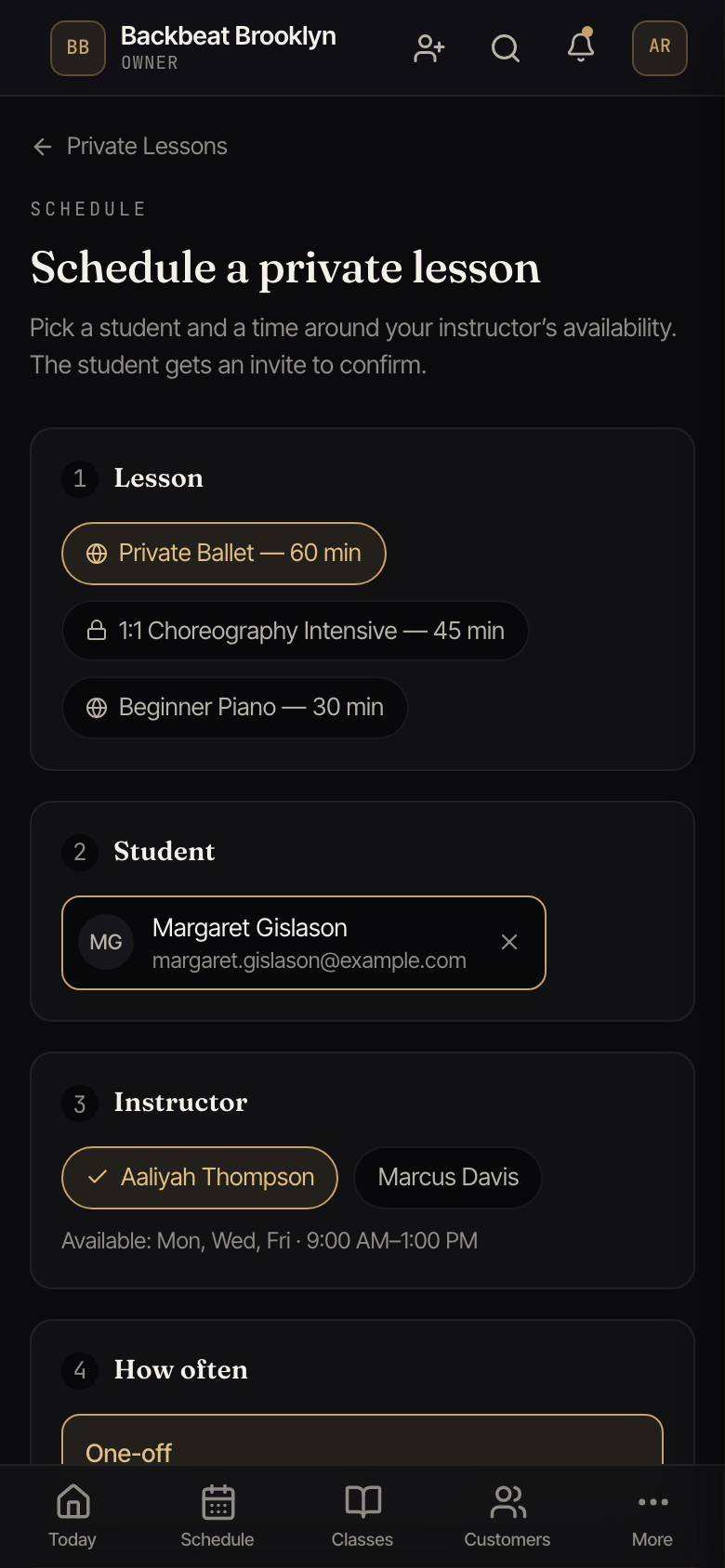
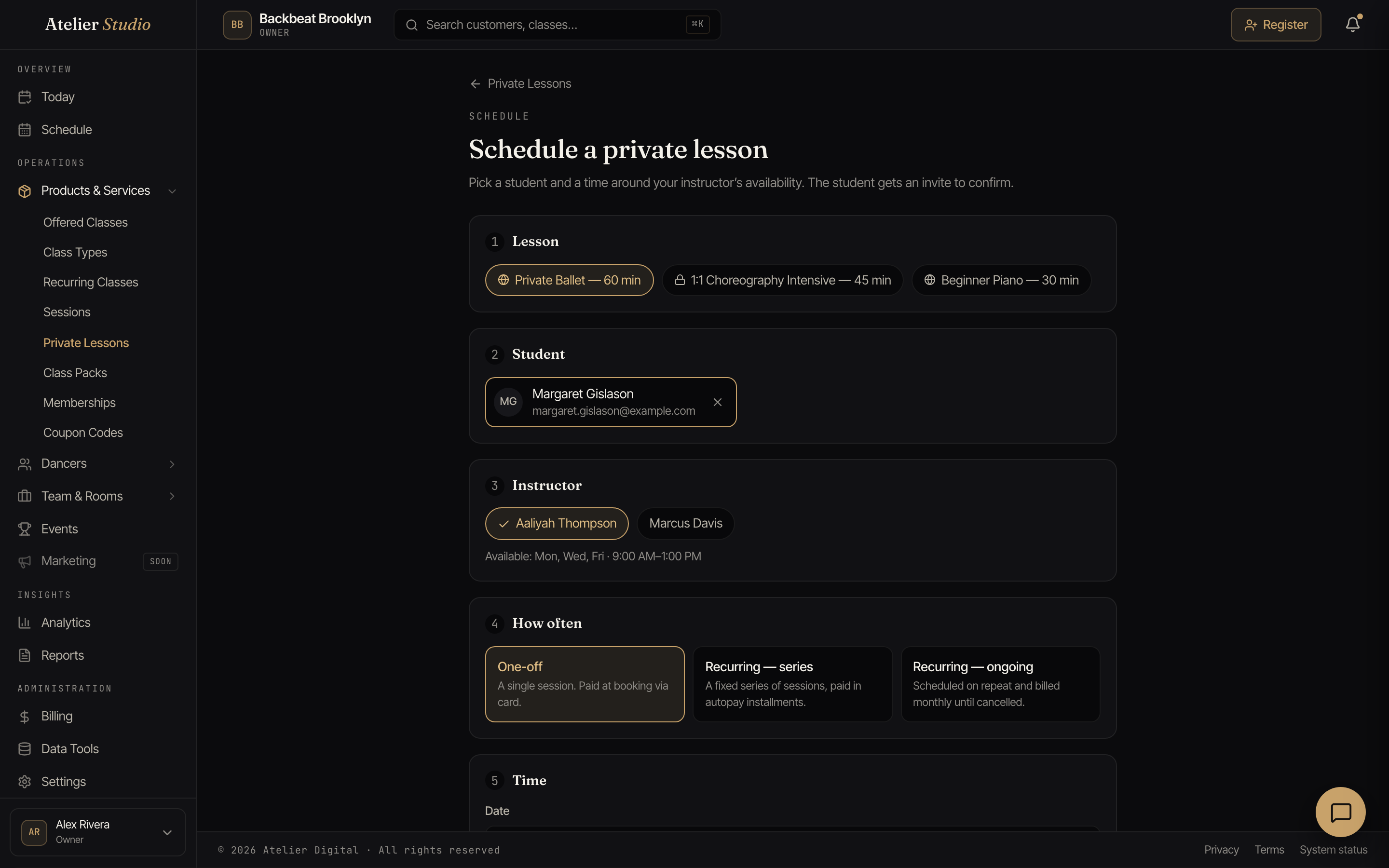
Work down the page:
- Lesson: which private lesson this is. Its length and price come from the lesson.
- Student: search for someone already on file, or add a new person by name and email. If they don’t have an account yet, they’ll get an invite to create one.
- Instructor: who’s teaching. You’ll see their set hours as a guide.
- How often: a one-off single session, a recurring series (a fixed number of sessions), or recurring ongoing (repeats until you cancel it).
Picking a time
You can schedule at any time that works. The instructor’s set hours are a guide, not a limit. For a one-off, pick a date, then either tap one of the instructor’s open times or set your own. For a recurring lesson, add a weekly day and time for each day the student comes, with the same open-time suggestions for that day.
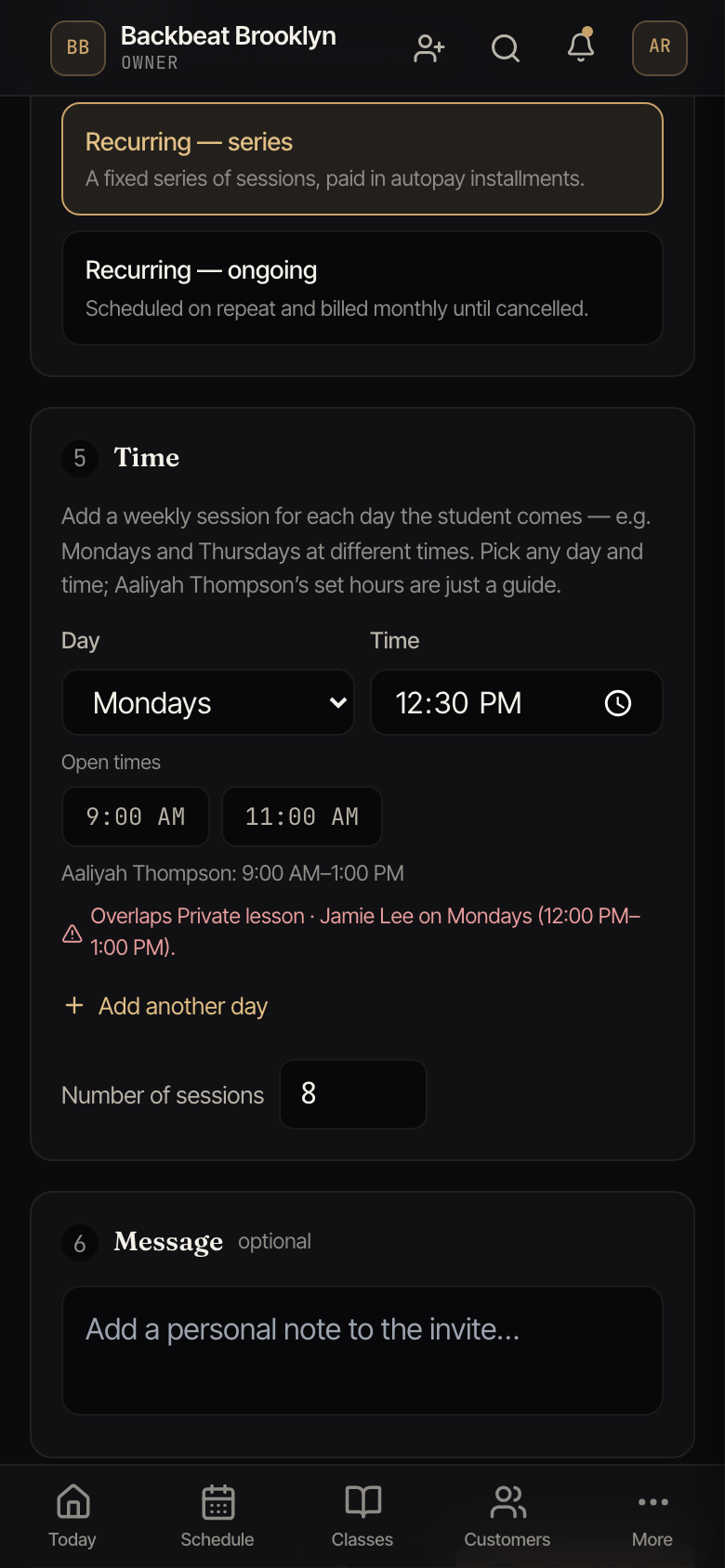
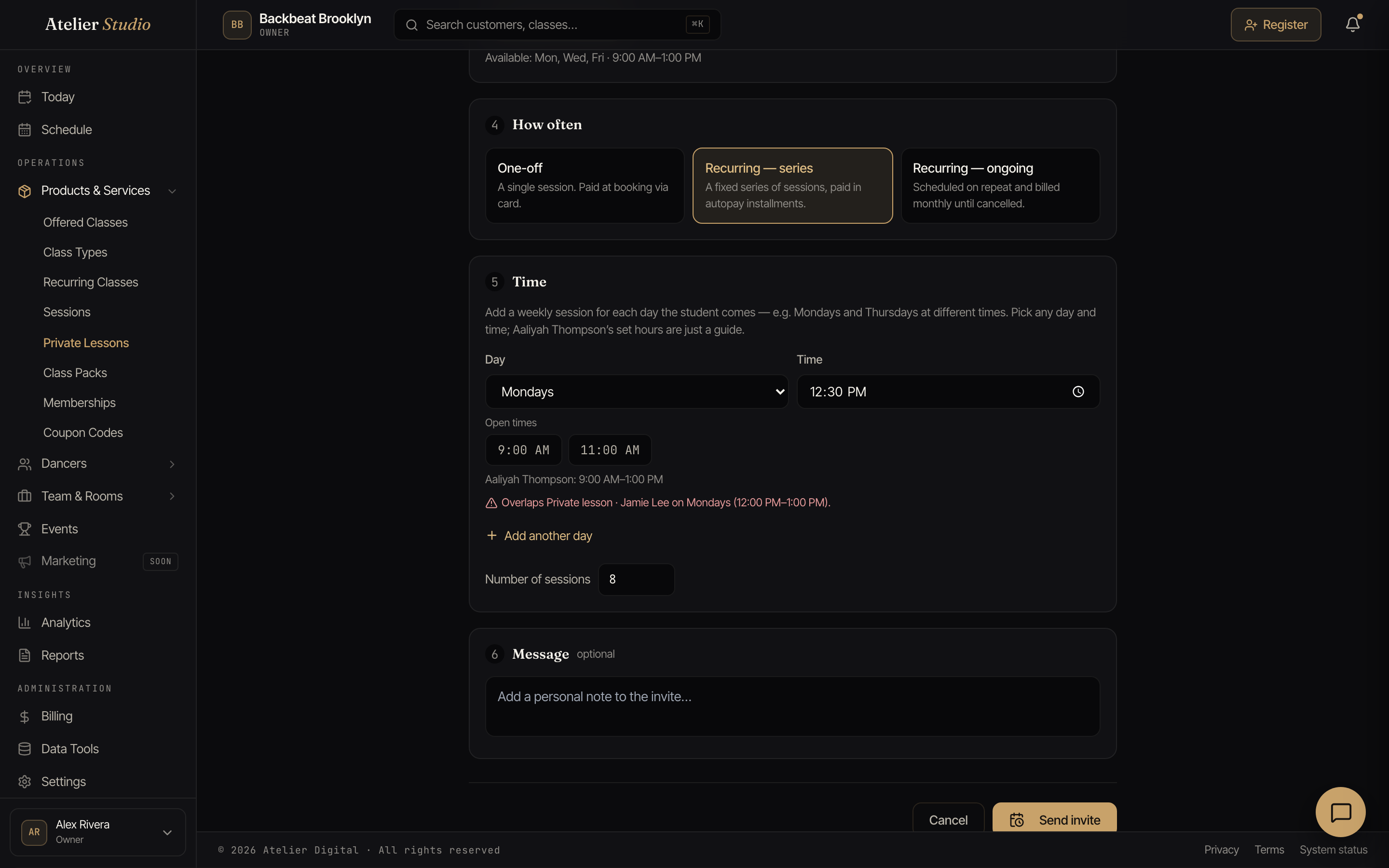
Atelier Studio watches for clashes. If the time you pick overlaps one of the instructor’s classes or another private lesson, you’ll see a note, for example “Overlaps Ballet Level 2 on Mondays.” It’s only a heads-up, so you can still go ahead if you mean to; it just keeps a double-booking from slipping through by accident.
Sending the invite
Select Send invite, and the student gets an email (and a text message, if you have messaging switched on) to confirm. Once they accept, the lesson lands on the calendar. For a paid lesson, they add a card at the same time, so a recurring series bills itself on schedule.
Keeping lesson notes
Every private lesson keeps a shared lesson-notes log, a running record you and your instructors add to after a session. It’s a natural place for progress, what to work on next, or a reminder for the next lesson. There are two ways in:
- From the calendar: open a private lesson on the Schedule and add a note right on that session. It’s tagged to that date automatically.
- From the student’s profile: open anyone from your directory, find their Private Lessons, and select Notes. Choose which lesson the note is about (it defaults to their next session) or mark it a general note.
Check Email a copy to the student when you add a note if you’d like them to receive it by email as well.
Scheduling a make-up lesson
If a student misses a private lesson and you mark them as a no-show, you can book another lesson for them. This is a make-up lesson. It is a new lesson on the same lessons plan, with the same teacher, the same length, and the same place.
- Open the lesson’s page, or the student’s profile on the Bookings tab. On the no-show, choose Schedule make-up. You see this only if you have permission to manage bookings.
- Pick a date. Then pick a start time. The times when the teacher is free are shown first.
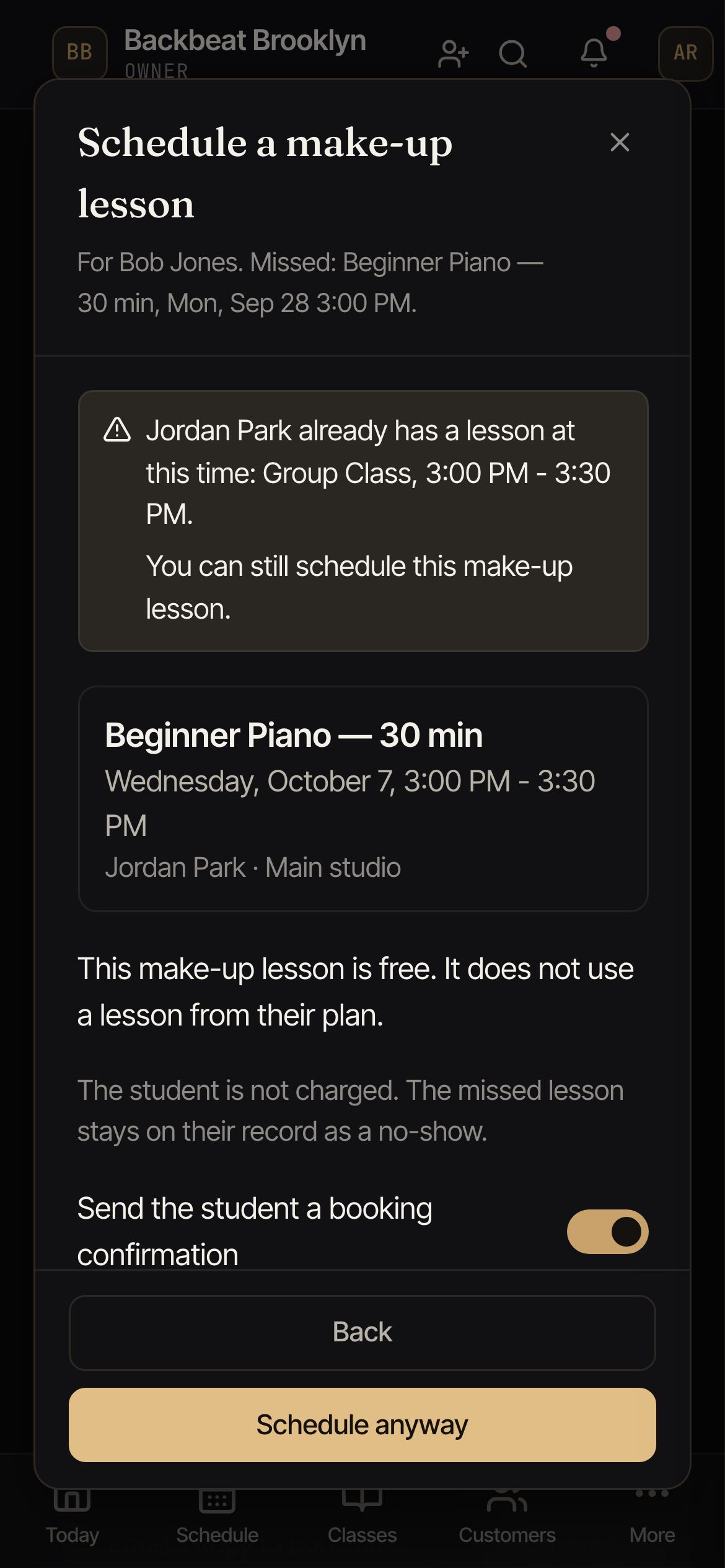
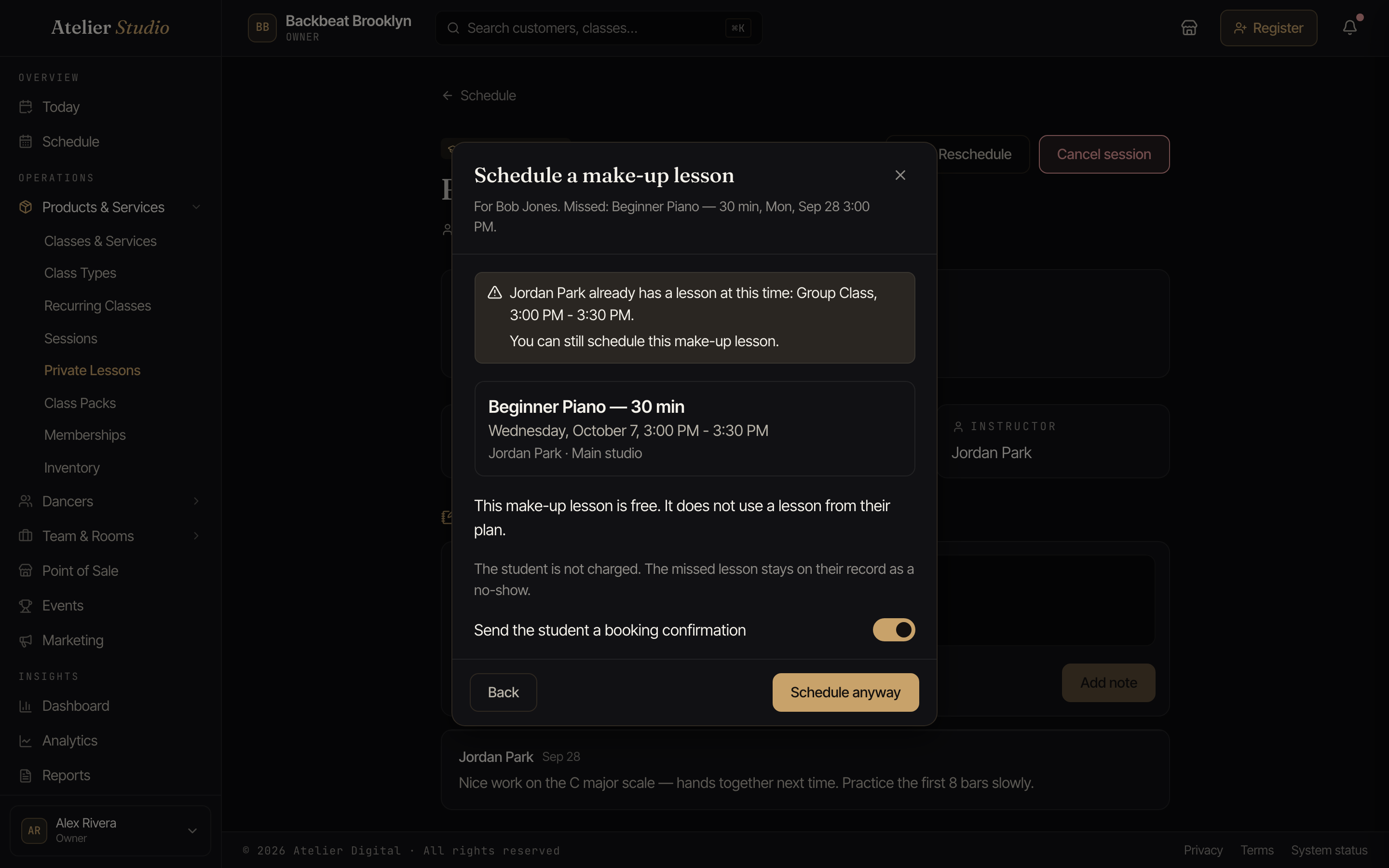
- Check the line that says how the make-up is paid for. It is chosen for you. A make-up lesson never charges the student (it may use a make-up credit they already have), and it does not use one of the lessons in their week or month. The missed lesson still counts as used.
- Select Schedule make-up.
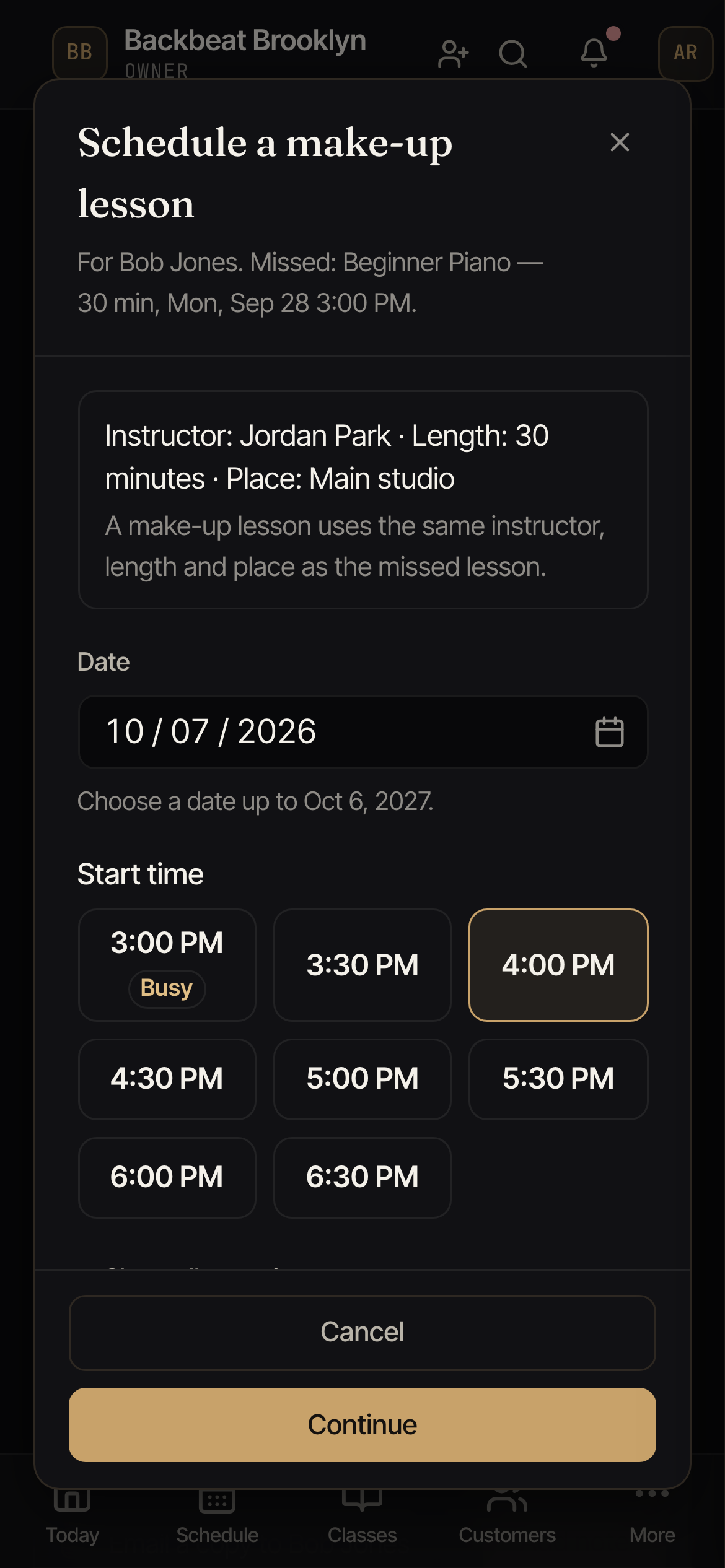
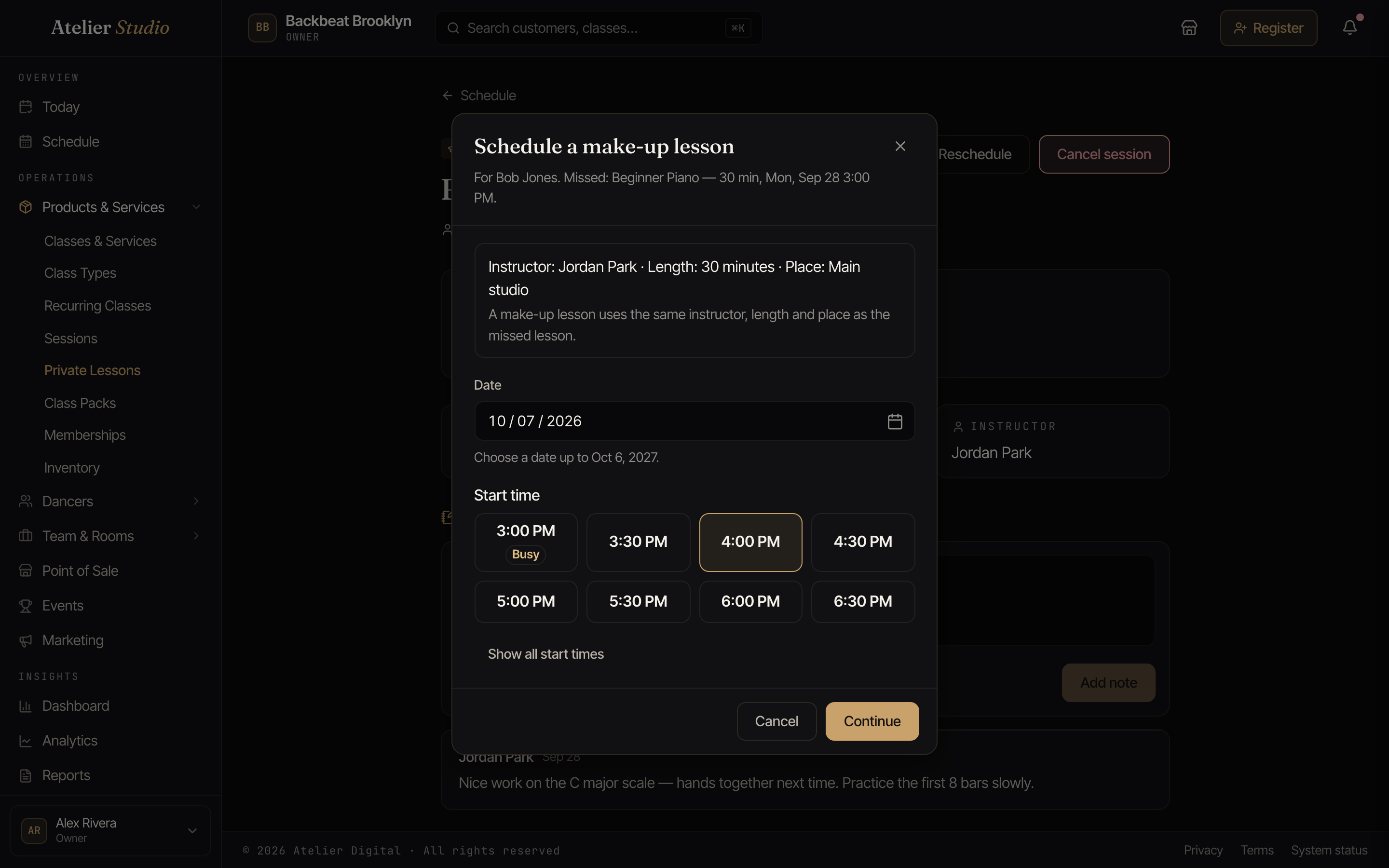
If the time you pick is busy, you see a warning. The teacher may have another lesson then, or the student may have another booking. You can still select Schedule anyway if that is what you want.
You cannot book a make-up lesson in the past, or more than one year ahead. A time that does not exist because the clocks change that day (for example 2:30 AM on the day the clocks move forward) is not offered. If you type one, you are asked to pick another time. If the lessons were cancelled, or the student has not paid, the button is gray and the reason is shown next to it.
On the make-up lesson, the payment shows Make-up. When the student comes, check them in as usual. You do not need to collect any payment.
A missed private lesson does not get a make-up credit from your no-show setting. Use Schedule make-up to give the student another lesson.
Make-up lessons are not paid to the teacher. In Payroll they show as a line with a Make-up badge and $0.
If you cancel a make-up lesson, only that lesson is cancelled. The rest of the lessons plan stays as it is, and a free make-up gives nothing back. After you cancel it, you can book a new make-up lesson for the same no-show. A make-up lesson that has already started, or was used, cannot be removed. While a make-up lesson is booked, you cannot check the student in late for the missed lesson. Cancel the make-up lesson first.
Changing or canceling a lesson
You’ll find these actions on a student’s Private Lessons, either on their profile or on the lesson’s own page.
- Reschedule: move a lesson to a new day or time. For a weekly series, you can move just the next session or every future one. Rescheduling never charges the student again.
- Pause and resume: pause a recurring lesson to stop its sessions and billing for a while, then resume when the student’s ready. Neither charges anything.
- Cancel just the next session: takes that one session off the calendar while the recurring lessons carry on. If that session had been paid for, the student gets studio credit for it to use on a future booking. This cancels the next lesson that has not started yet. A lesson that already started is skipped. If there is no upcoming lesson left, you see There is no upcoming lesson to cancel. and nothing changes. Students see the same message in their account.
- Cancel the whole lesson: ends a one-off, or an entire series, and stops any future billing.
Each of these has a Notify customer switch, on by default, so you can turn off the email or text when the student is already in the room with you or you’ve told them yourself. It only covers that one message. Everything else about the reschedule, pause, or cancellation happens the same either way.
Where a refund goes
When canceling the whole lesson returns money, you apply your cancellation policy (a full refund, a partial one, or nothing), which you set under Settings → Policies. Any refund can go back to the student’s card or become studio credit they can spend next time. Policies sets your default, and the Refund to choice in the cancel window lets you send a single refund the other way.