
For studios · Customers
Your customers
Find anyone who's booked with you, search and filter, and keep their details tidy.
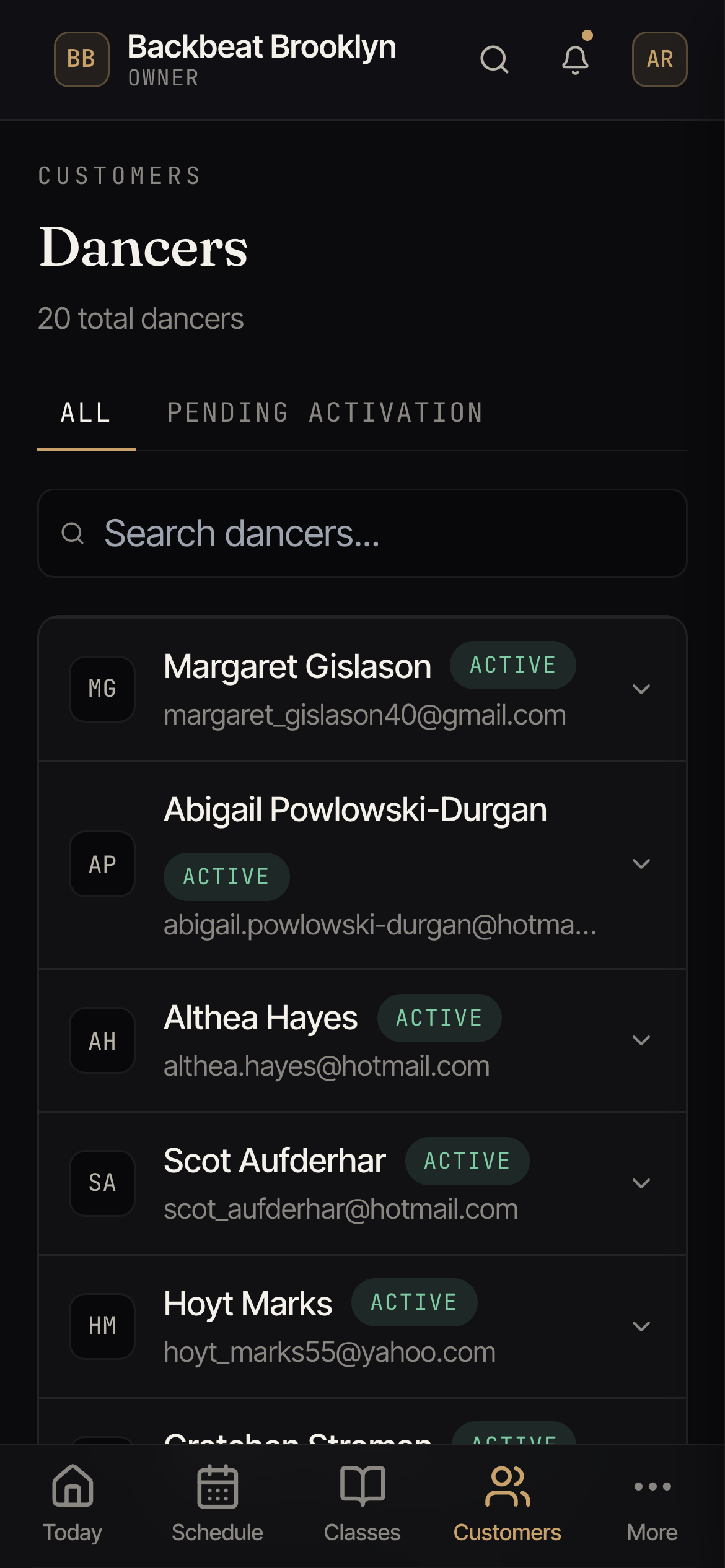
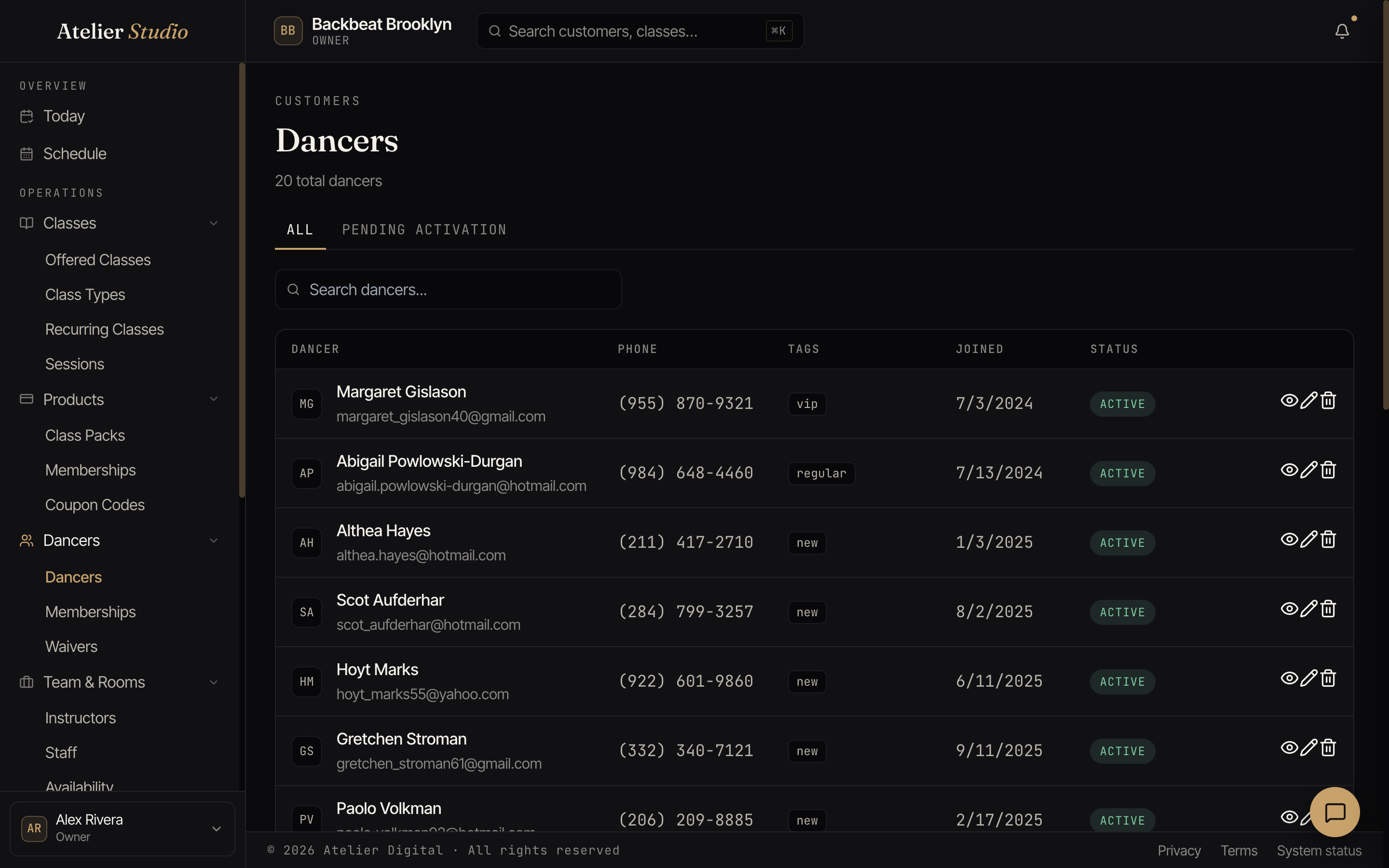
Everyone who books with you gets a record automatically. The Customers screen is the single place to find them, search, and open anyone’s details.
Finding people
Use the search box to find someone by name, email, or phone number. It looks across your whole list of customers (not just the ones on the page in front of you), so it works no matter how many you have. Type more than one word to narrow things down: search Jane to see every Jane, then add Jones to land on Jane Jones.
Your customers show a page at a time. Use Previous and Next at the bottom to move through the full list, and the count at the top of the screen tells you how many you have in total.
Sort the list by selecting a column heading: name or join date. Select the same heading again to flip between A→Z and Z→A (or oldest and newest). Sorting works across your whole list, not just the page you’re on, and it starts sorted by name, A→Z. On a phone, use the Sort by control just above the list.
The All / Pending Activation tabs let you separate people who’ve finished signing up from those who still need to. From Pending Activation you can send activation invitations, an email nudging imported customers to finish setting up their account.
If you’d rather not email a name on that list (someone who’s already active in person, or who you know doesn’t check that inbox), select Do not send invites to move everyone currently on the list off it in one step. It doesn’t email or text anyone, and it doesn’t remove anyone as a customer; it just clears your Pending Activation list. Anyone you change your mind about can be invited again individually from their own profile (see below).
Each row shows their contact details, any tags, when they joined, and whether they’re active.
Inviting one customer who was left off
Open a customer you previously chose not to invite and you’ll see a Not invited label near their name, along with a Send activation invite button. Select it to send that one person an activation email. They’ll move back onto your Pending Activation list until they finish setting up their account. If they were already invited before, you’ll need to wait 7 days between invitations to the same person.
Recent
When the search box is empty, a Recent list shows above your customers. It holds the people you opened lately, newest first, up to 8. Select a name to go straight back to that profile. Start typing in the search box and the list steps aside.
Nothing is saved to your account. The list only covers this browser session, so it clears when you reload the page fresh or sign out.
Tags
Tags (like vip, regular, or new) are little labels you add to group people.
They’re handy for finding, say, everyone who’s new this month.
Opening someone
Select a person to open their full profile: history, passes, notes, and more. See A customer’s profile.