
For studios · Getting Started
Your home base: the Today screen
The Today screen is the first thing you see when you sign in. Here's what every part of it means.
When you sign in, the Today screen is the first thing you’ll see. Think of it as the front desk of your studio: a quick look at what’s happening today, how the week is going, and anything that needs a moment of your attention.
You can come back to it any time. On a phone, tap Today in the bar along the bottom. On a computer, click Today at the top of the menu on the left.
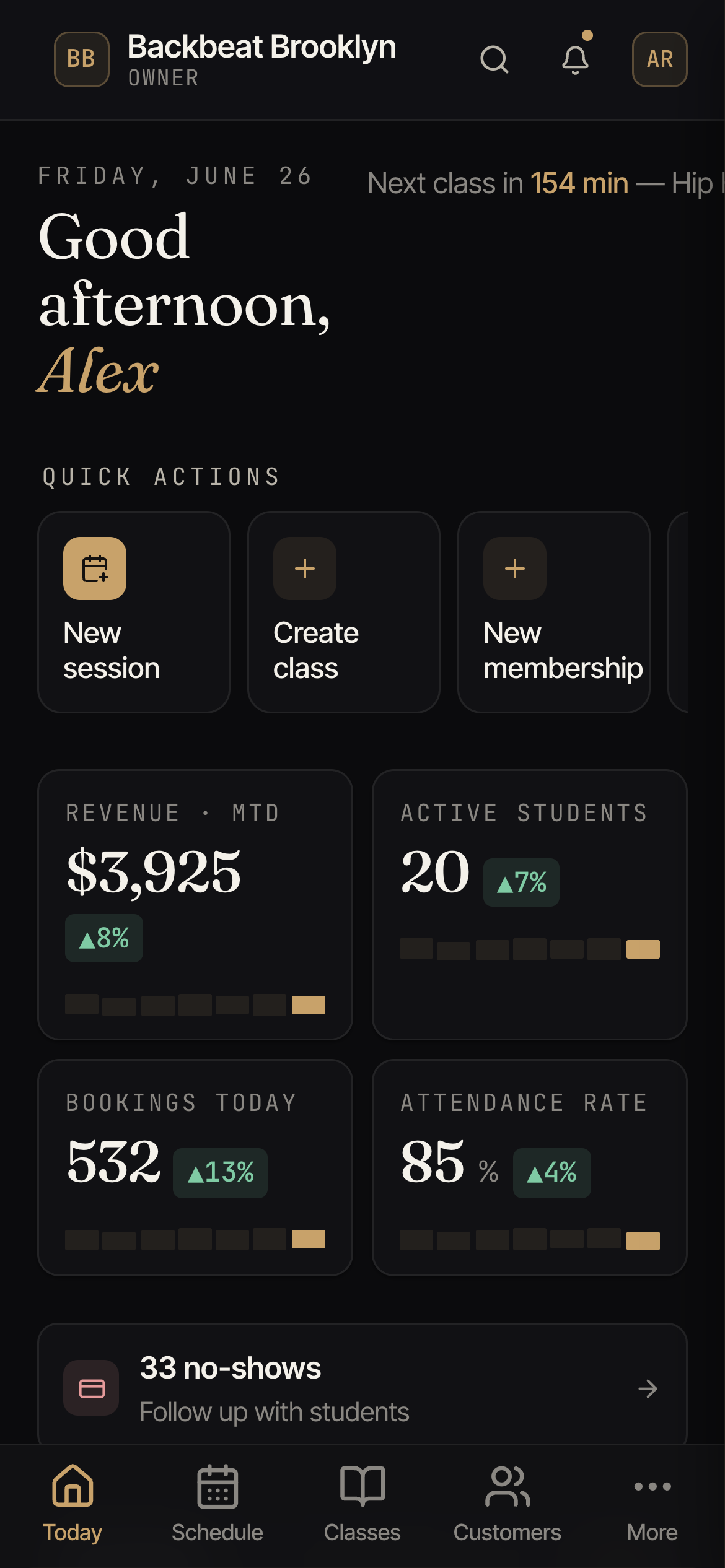
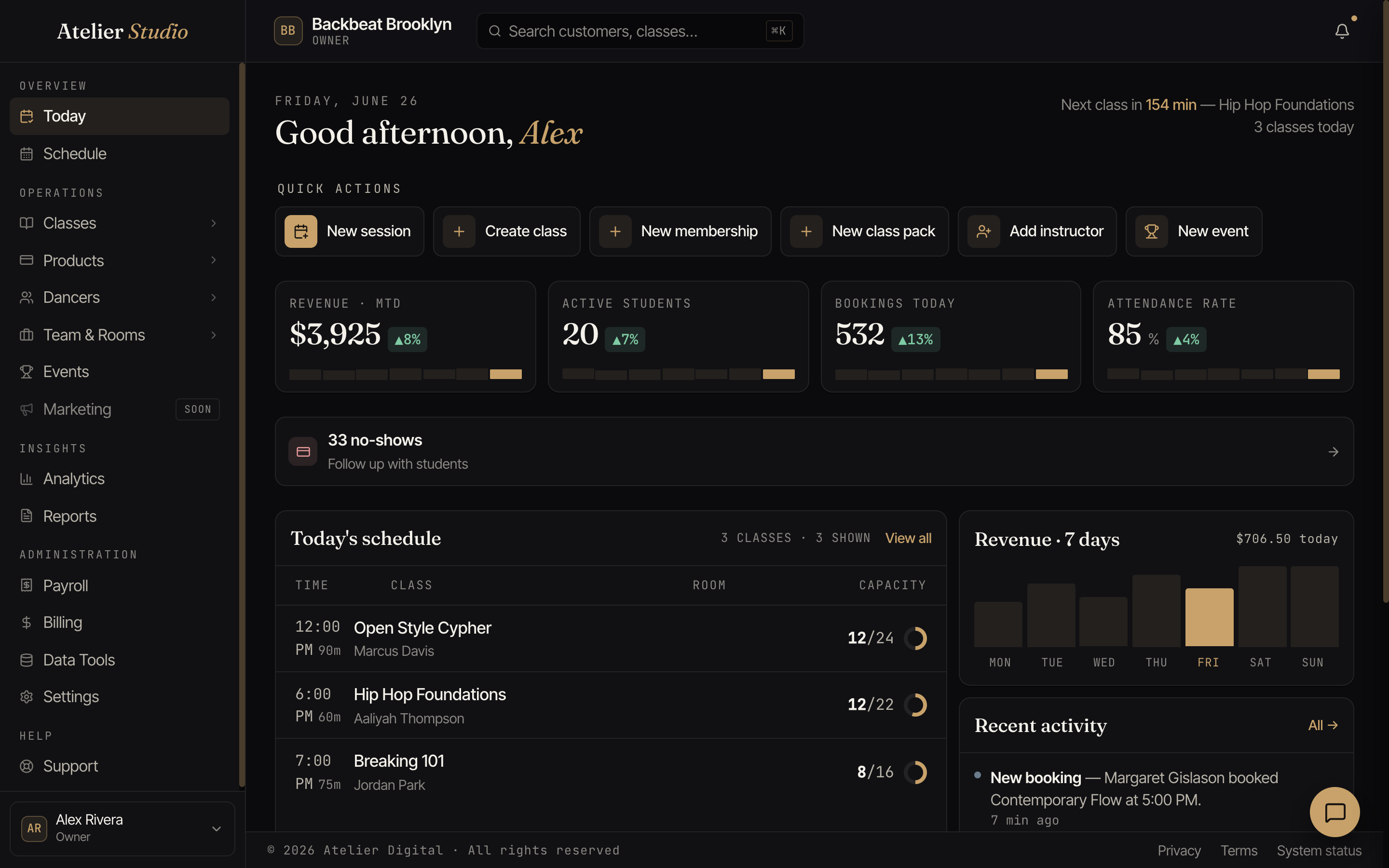
A friendly hello, and what’s next
At the top you’ll see a greeting and your studio’s name, plus a reminder of your next class and how soon it starts. It’s handy for knowing whether you’ve got time for another coffee before the room fills up.
Finish setting up your studio
If there’s still something to finish before your studio is fully up and running, you’ll see a bold Finish setting up your studio card right at the top, above everything else. It lists only the steps you’ve still got left, and each one has a button that takes you straight to the right screen. It shows up while you’re still getting ready and after you’ve opened your doors, until everything’s sorted. Then it quietly disappears.
It can prompt you to:
- Set up payments: connect your payout account (through Stripe) so you can take card payments online. On some plans this is needed before you launch; on others it’s optional and you can connect whenever you’re ready. The button drops you on the payments screen to pick up where you left off (see Getting paid for the full walk-through).
- Add a subscription payment method: put a card on file for your Atelier Studio plan, so your studio keeps running once your free trial ends. The button takes you to your subscription and invoices.
Quick actions
Just below the greeting is a row of quick actions, shortcut buttons for the things you do most, like Register or enroll (for a new or an existing student), adding a class to the calendar, or adding a new student. They save you a trip through the menus. Your studio’s own words show on the buttons, so if your studio calls its students “dancers”, you will see “New dancer” instead.
Make them your own. Select Customize at the top-right of the row to choose exactly which actions appear, and drag them into the order you like, and put the one you reach for most first. Add shortcuts from the list, remove any you don’t use, or choose Reset to defaults to go back to the starting set. Your choices are saved to your account, so changes show up everywhere you are signed in, on the web and on your phone. Everyone on your team sets up their own.
Your numbers at a glance
Next come four summary cards that tell you how things are going:
- Revenue · MTD: how much money you’ve taken in so far this month (“MTD” is just shorthand for month-to-date).
- Active students: how many people have actually come to a class in the last 30 days, not everyone who’s ever signed up. (So if you bring your history over from another system, only people who’ve been in recently count here.)
- Bookings today: how many new bookings were taken today.
- Fill rate: how full your classes are on average (the spots booked measured against the seats available).
Under each number is a small bar chart, a quick picture of the last seven days for that figure, with today highlighted.
Most of the cards also show a little up or down arrow with a percentage, comparing the number against the period before (month-to-date revenue against last month, bookings against yesterday), so you can spot a good week at a glance. Fill rate shows its seven-day trend without an arrow.
Things that need attention
If something could use a look, you’ll see a gentle reminder strip here, for example cancellations or no-shows from the last little while. Select a card to open a short list of exactly those students, with an easy way to get in touch and win them back (see Following up on cancellations and no-shows). When everything’s in order, the strip simply won’t appear.
Today’s classes
Further down (and over on the right on a computer) is today’s schedule: each class in order, who’s teaching, and how full it is. Select any class to open it, take attendance, or manage who’s booked in.
Revenue this week
Alongside today’s schedule is Revenue · 7 days, with one bar for each of the last seven days, so you can see how the week is shaping up. Today’s bar is highlighted, and the figure in the corner is what you’ve taken in today. A quiet day simply shows a shorter bar. Every bar is your real total for that day.
What’s next
- Get comfortable moving around in Finding your way around.
- Then head to your Schedule to put your first class on the calendar.