
For studios · Bookings & Schedule
Creating a class
Add a single class or a recurring series to your schedule, set capacity and pricing, and open it for reservations.
Every reservation starts with a class on your schedule. A class holds the instructor, time, capacity, and price — once it’s published, clients can book it from your booking page and the in-app calendar.
Open the schedule
From the left menu, choose Schedule. The week view shows every class across your studios, colour-coded by status: champagne for classes that are full or have a waitlist, green for classes with open spots.
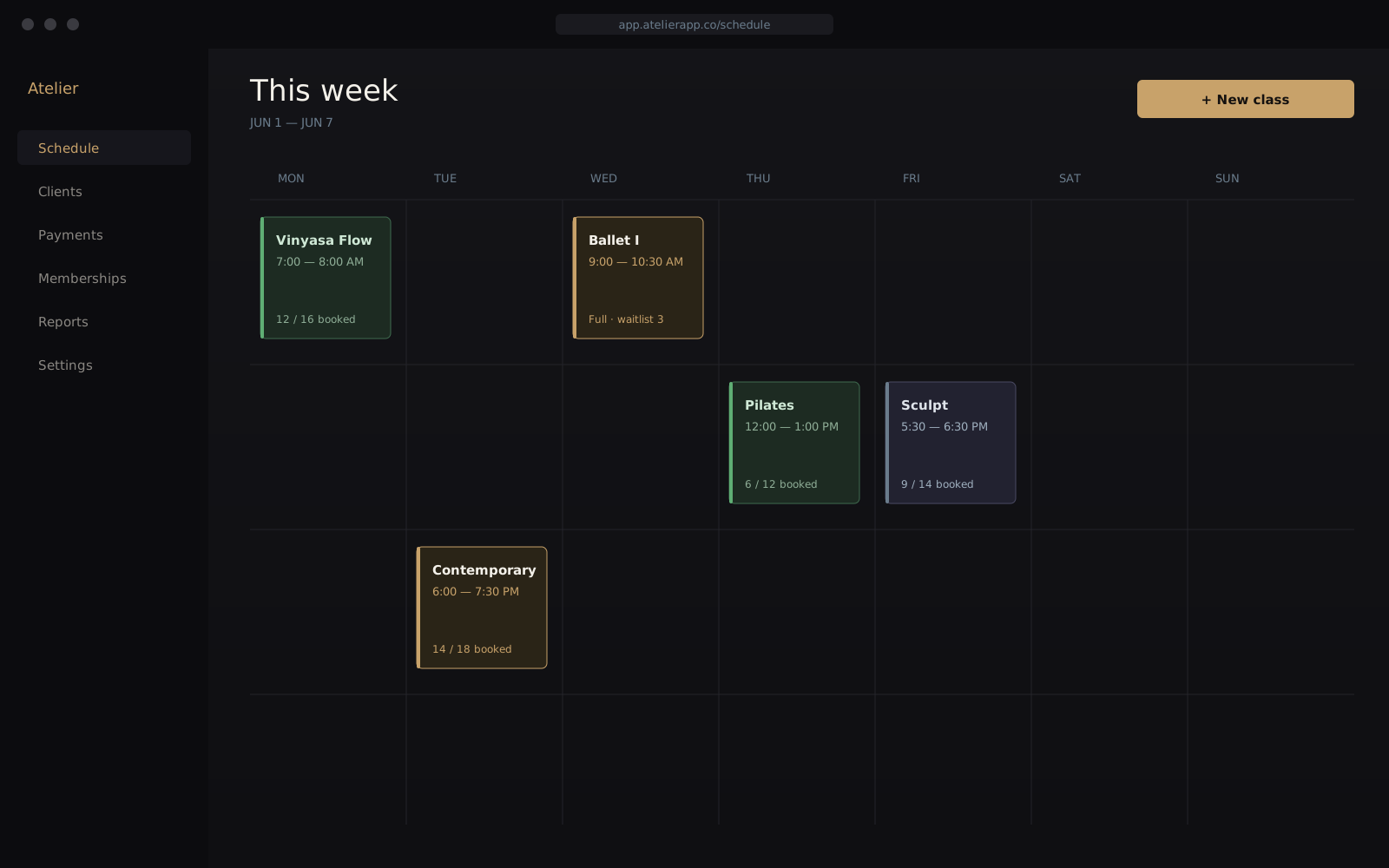
Add a class
Select New class in the top right. A panel slides in from the side — fill it out top to bottom.
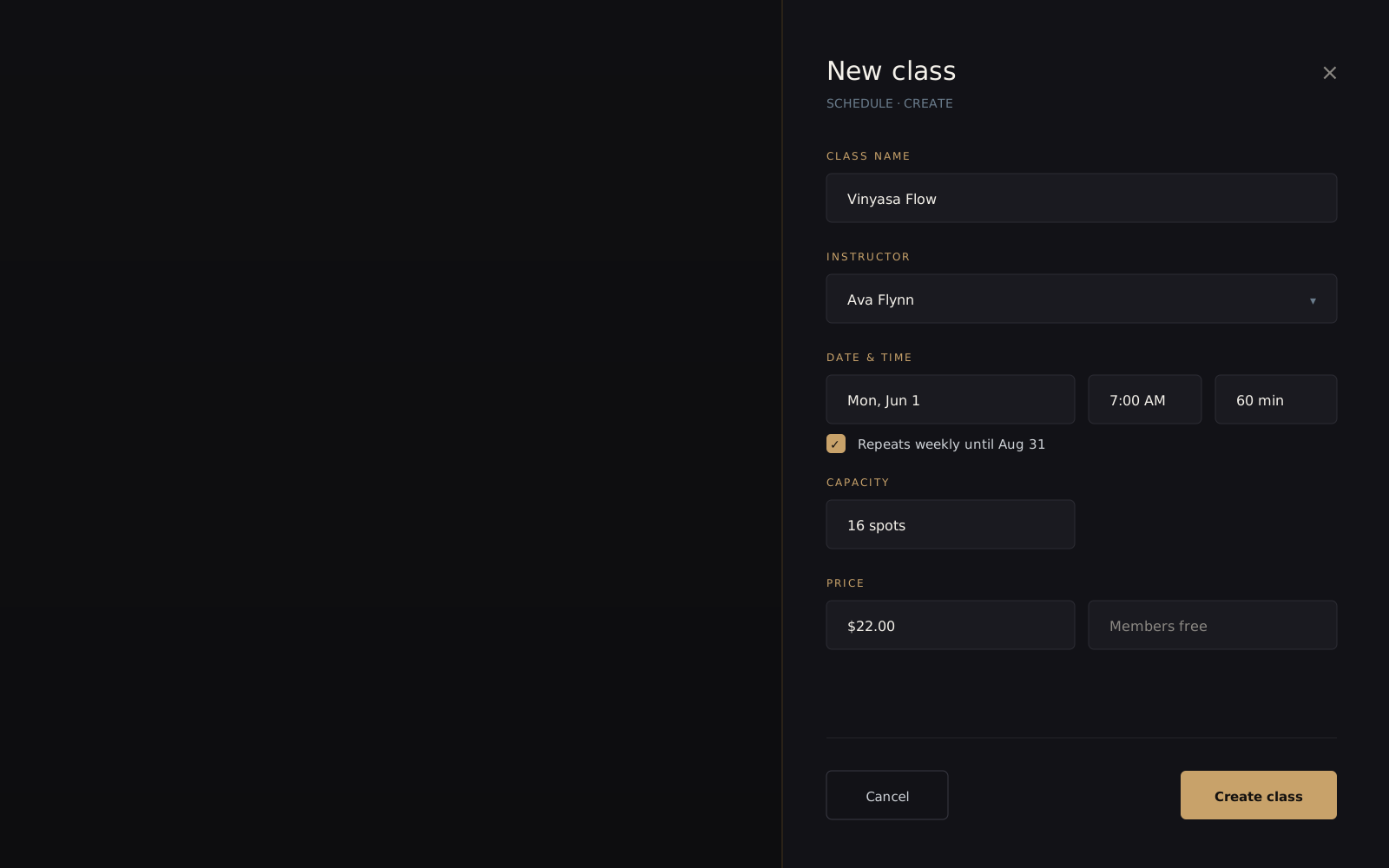
- Class name — what clients see on the booking page, e.g. Vinyasa Flow.
- Instructor — pick from your team. Instructors only appear here once they’ve been invited under Account → Team.
- Date & time — set the start, then the duration. Atelier Studio blocks the room for that window so two classes can’t double-book the same studio.
- Capacity — the number of spots. When they’re gone, the class shows as full and new clients join the waitlist instead.
- Price — a single drop-in price. Set Members free to let active memberships book without paying per class.
Publish and share
Select Create class. The class appears on your schedule immediately and is live on your booking page. Copy the booking link from Schedule → Share, or embed the booking widget on your own site.
Edit or cancel
Select any class on the schedule to reopen the panel. Changes to time or capacity apply right away; clients with existing reservations are notified automatically.
Next, learn how to keep a busy week under control in Managing your calendar.